User Operation Manual: Smart Meter RG2
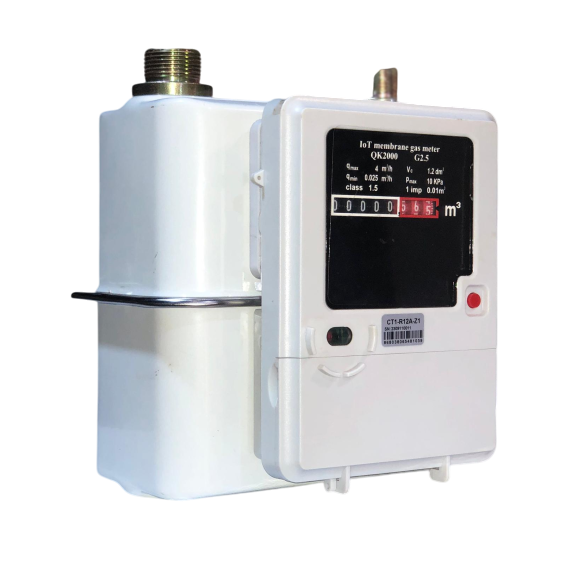
1. About Your Smart Meter RG2
The Smart Meter RG2 is an intelligent IoT meter designed to accurately measure your gas consumption. It offers real-time insights and convenient management of your utility services.
2. Important Safety Information
Please read and understand these safety guidelines before operating your meter.
2.1 Safe Use of the Meter
- Professional Installation: Your Rokswood Group meter should only be installed and serviced by qualified personnel. Do not attempt to open or modify the meter yourself.
- Environmental Conditions: Ensure the meter is installed in a location that meets the recommended environmental specifications (temperature, humidity). Avoid exposing the meter to direct sunlight, extreme heat, or excessive moisture.
- Physical Damage: Protect the meter from physical impact or damage. If the meter appears damaged, contact Rokswood Group support immediately.
- Children and Pets: Keep children and pets away from the meter to prevent accidental damage or tampering.
2.2 Ensuring Equipment Safety
- Authorized Repairs: Any repairs or maintenance must be performed by Rokswood Group authorized technicians.
- Cleaning: To clean the meter, use a soft, dry cloth. Do not use abrasive cleaners, solvents, or water directly on the meter.
- Cable Integrity: Periodically inspect any visible cables connected to the meter for signs of wear or damage. If any damage is observed, contact Rokswood Group support.
3. Getting Started
3.1 Meter Overview
- Indicator Lights: Occationally, the meter indicator light flashes red, this happens during the meter’s wake cycle.
3.2 Understanding Your Readings
Your meter provides real-time data on your consumption.
- KG: Your meter measures gas in KG.
- Current Reading: This shows your total accumulated consumption and can be viewed in the Rokswood Utility Mobile App.
- Credit Balance: For prepaid meters, this displays your remaining credit and can be viewed in the Rokswood Utility Mobile App.
4. Recharging Your Meter
Keeping your meter topped up is essential for uninterrupted service. Rokswood Group meters primarily support two recharging methods: remote connectivity and token-based.
4.1 Remote Recharge (Most Common)
Most Rokswood Group meters are designed for convenient remote recharging. Once you have purchased credit through our authorized channels (e.g., mobile app, web portal), your meter will automatically update its credit balance via its network connection.
- How it Works: After a successful purchase, the credit is sent directly to your meter over the air.
- Confirmation: You’ll typically receive an SMS or in-app notification confirming the successful recharge.
- Automatic Update: Your meter’s credit balance should update in the mobile app within a few minutes to reflect the new credit balance.
5. Important Note for Battery-Powered Meters and Sleep Cycles
Some Rokswood Group meters are battery-powered to ensure long-term operation without external power. To conserve battery life, these meters are designed to report usage and update their status at set intervals (e.g., every 6 hours, once a day). This is referred to as their sleep cycle.
5.1 Triggering Meter Wake-Up
If you recharge your battery-powered meter during its sleep cycle, the meter will not immediately update its credit balance from the remote server. To ensure your meter reflects the new credit promptly, you need to manually trigger the meter to wake up.
-
How to Trigger Wake-Up:
- Press and hold the red trigger button until when the red indicator light comes up, wait for 15 seconds and press and hold the trigger again for 5 seconds.
-
Confirmation: Once triggered, the meter will connect to the server, update its status, and display the new credit balance in the app. This process usually takes a few seconds.
6. Troubleshooting Common Issues
6.1 Meter Not Displaying New Credit After Recharge
- Remote Recharge:
- Check Network Connection: Ensure your meter has a strong network signal. Look for the network indicator light.
- Wait a Few Minutes: Sometimes, it can take a few minutes for the credit to propagate to the meter.
- Trigger Wake-Up (for battery-powered meters): If your meter is battery-powered, follow the instructions in Section 5.1 to wake it up.
- Verify Purchase: Confirm your recharge was successful through your Rokswood Group app, web portal, or SMS confirmation.
6.2 “Low Credit” or “Disconnected” Indication
- Recharge: Your meter likely has insufficient credit. Recharge your meter following the instructions in Section 4.
- Network Issues: If you’ve recharged and the issue persists, there might be a network connectivity problem. Check your network indicator light.
6.3 Meter Not Responding
- Battery Level (for battery-powered meters): If your meter is battery-powered, the battery might be low. Contact Rokswood Group support for battery replacement guidance.
7. Frequently Asked Questions (FAQs)
- How do I check my current credit balance?
- You can view your credit balance through the Rokswood Utility Mobile App or web portal.
- What happens if my credit runs out?
- Your gas supply will be disconnected until you recharge your meter.
- Can I monitor my consumption history?
- You can access your consumption data through the Rokswood Group app/portal.
- Who do I contact for support?
- Please refer to Section 8: Customer Support.
8. Customer Support
For any issues, questions, or technical assistance, please contact Rokswood Group Customer Support:
- Phone: +234 912 0000 601
- Email: info@rokswood.com
- Website: www.rokswoodenergy.com